Creating Accessible Courses
Accessibility means making your course materials usable for students with different abilities, learning needs and levels of tech access.
By planning ahead, you can create an inclusive learning environment where everyone can engage fully.

Present Content in Multiple, Consistent Ways
- Offer materials in more than one format — text, video, audio and/or images — to meet different learning needs.
- Use consistent structures. Weekly discussion forums should look the same week to week; assignment guidelines should follow a familiar pattern so key information is always easy to find.
- Remember that consistency helps students focus on content rather than searching for instructions.
Consider Technology Access and Skills
- Don’t assume all students have the same level of technical skill. Provide instructions or guides for any platforms, tools or features they’ll need.
- Even if upper-year students know Moodle basics, they may need support with advanced functions or new technologies.
- Low-tech options can be highly effective. Sometimes the simplest tools are both the most accessible and the best fit for your learning outcomes.
- Explore resources like eCampus Ontario’s guide for creating lower-bandwidth versions of content to ensure students with limited internet access can still participate fully.
More Tips + Resources
Making Scanned Documents Machine Readable
The KIC book scanners in the library have optical character recognition (OCR), which means they can scan text and make it readable. If you are scanning course material you can make your document more accessible by saving the file as a Searchable PDF. This will allow the text to be read by screen readers and make it easier for students to find content within the text.
If your document is difficult to see, use the settings to adjust the brightness and contrast to make it easier to read.
Read more on the ECU Library’s Resources on Accessible Teaching.
Creating Accessible Texts
General guidelines for creating readable, accessible text documents are as follows:
- Use large, bold fonts on uncluttered pages with plain backgrounds.
- Use color combinations that are high contrast and can be read by those who are colorblind.
- Use clear, consistent layouts and organization schemes for presenting content.
- Structure headings, tables and lists using style features built into Moodle, Microsoft Word, Google Docs, etc. People with visual impairments use these document structure tools to navigate through a document.
- Use descriptive wording for links (e.g., “Mixing paint tutorial” rather than “click here”).
Screen reader technology can usually read files saved in PDF or common word processing formats (such as Word or Google Docs), but they cannot read text scanned as images or created in less common platforms.
If you are scanning text, use optical character recognition so it can be read with a screenreader. Save the file as “Searchable PDF” to use OCR.
Wherever possible, use actual text instead of images with texts embedded in them. If you can’t avoid using images with text, provide a caption or description of the text that those using screen readers can access (just as you would with other images—see below).
If you are creating Moodle books, make sure you make them printable which will allow students to export them as PDFs. Do this by adding the Administration block to the book view (i.e. add it when you are actually viewing one of the pages in the book) and then the print option will show up for students.
Accessible Image, Video and Audio Resources
Those with visual and certain types of processing impairments rely on image descriptions that a screen reader can read as they navigate the page. When you are uploading images to your Moodle site, always provide a description of the image, as well as an image caption.
Within My Media there is a button to display the listed content in high-contrast and black and white:
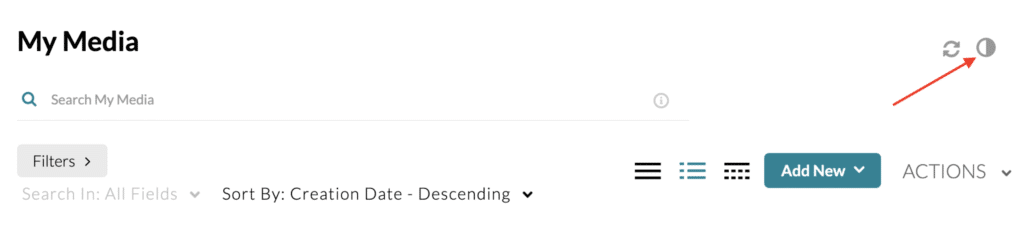
Those with hearing impairments find captions and transcripts essential to fully engage with video and audio content. See this guide on how to order and edit captions for uploaded videos.
Google slides has a fairly good automatic captioning function if you are creating video lectures. The TLC is research other programs to create automatic captions and transcripts.
Accessible Videoconferencing
Some students will find real-time conversations in Teams difficult to participate in for a variety of reasons, whether emotional or technological.
The following tips can make the real-time Teams conference more accessible for all:
- Have students identify themselves when they speak in large group discussions—a simple “This is Gabe. I have a question about x.” Those with visual impairments or who are unable to view video because of weak internet connections will not be able to follow speaker highlighting.
- Give clear instructions about when and how students should use the chat function, or consider turning off the chat function for some discussions: having two parallel conversations happening simultaneously can be distracting and confusing for those with certain types of cognitive processing impairments.
- If you are using the chat function, consider assigning someone (a co-instructor, TA or student) to bring forward important ideas and questions into the main discussion so those with visual impairments don’t miss important information.
- If it’s available, use the closed captioning function on Teams to caption real-time discussions. If this feature is not available, you are able to add captions to video recordings of discussions using the MyMedia function in Moodle. See this guide to learn more.
Sharing Accessible Library Resources
The ECU library has some Resources on Accessible Teaching.
Not all library material is published in accessible formats, but if you can, try to find an electronic version of a text.
Search the library resources using the General Search option and narrow your results by eBook or article using the limiters on the left side of the screen. Most of these resources will provide multiple format options of the text (audio, larger print, etc).
Once you find the resource you can use the permalink or download and embed it into your Moodle site (within Copyright guidelines).
If you need help finding electronic versions, ask a library staff member for help. You can email them here. It’s possible that the resource is only published in print, but the library can try to find an alternate format for you.
Learn More
Find more resources here.