Videoconferencing
Connect and collaborate with Teams, the videoconferencing tool supported at ECU.
Use features like screen sharing, automatic captioning and breakout rooms to support teaching, learning and working together.
Explore guides and resources to help you get the most from this platform.

Key Resources for Teams
Microsoft Teams is ECU’s videoconferencing platform for all online meetings and classes.
Teams is a video-conferencing software with built in tools and features like screen sharing, automatic captioning, break-out rooms and more. But it also functions as an asynchronous messaging app outside of real-time meetings. All ECU employees and students have access to the Teams apps on their laptop and phone to use for meetings or online synchronous course delivery.
Getting Started
For access to the full suite of Teams features, the official recommendation from ITS is to install the Microsoft Teams client app to your device.
You can also access Microsoft Teams from your browser. Find out more here.
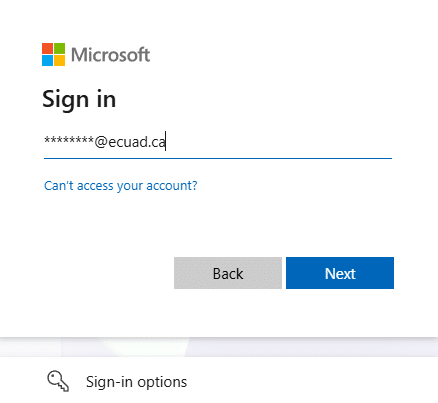
After installing Microsoft Teams, launch the software and sign-in with your MYEC credentials and 2FA.
Minimum System Requirements
Your computer will need to meet minimum system requirements to use Teams. Learn about the minimum system requirements for Mac, PC, iOS, Android and web,
Joining Meetings + Classes
There are multiple ways to join your meetings and classes on Microsoft Teams. You can:
- Join classes from the top of your Moodle course shell by clicking “Join the meeting now”.
- Receive invites to Teams meetings in your Outlook or Teams calendar and join from there.
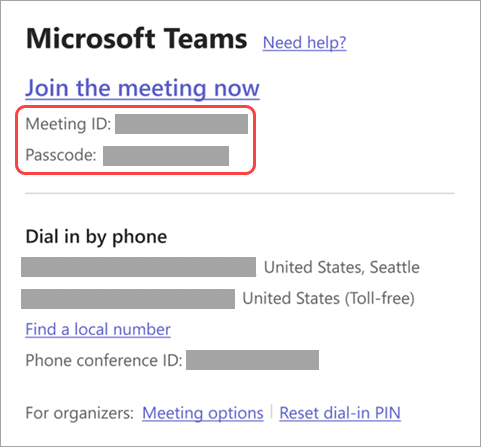
- Share the Meeting ID and Passcode with students and colleagues by e-mail.
- Using the Join a Microsoft Teams Meeting by ID tool from your browser. It will open the Teams app if you have it installed.
This screenshot is an example of what the Teams Meeting invitation looks like.
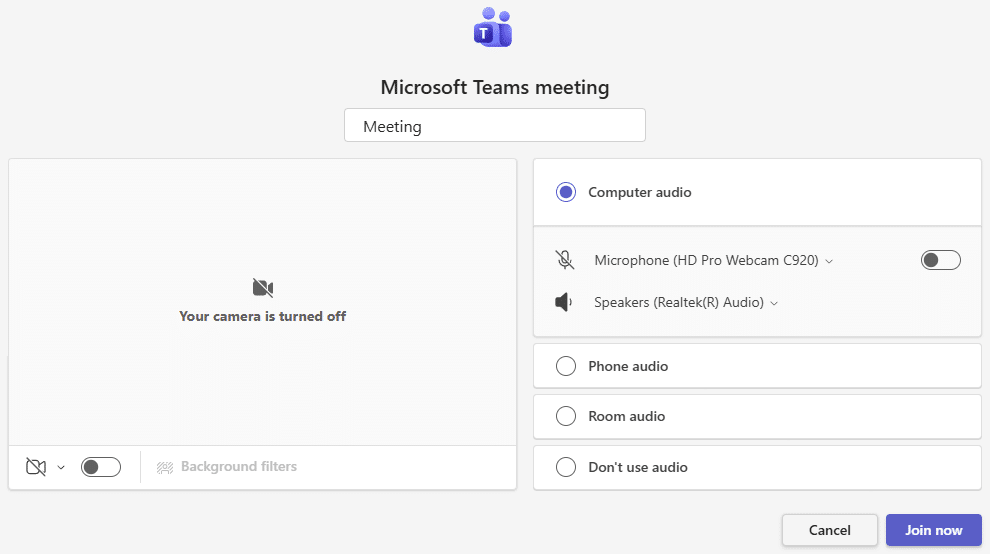
Before you join your meeting or class, you have the ability to review your camera and microphone settings. The screen looks like this:
Teams Videoconferencing Knowledge Base
Whether you’re just starting out or want to enhance your skills, a variety of helpful resources are available below to help you make the most of Teams. Visit the ITS Teams Knowledge Base to find support.
Please sign-in using your MUYEC credentials at the top right corner of the screen to view the tutorial recording at the bottom of the page.
Need Help?
If you encounter any issues or have questions during the transition, we are here to help. Please reach out to the IT Service Desk. Your feedback is essential to ensuring a smooth experience for everyone. For support, training and orientation, use our Support Request Form. For urgent support, please call the CTS support line at 604-630-4559.