Moodle, Kaltura and WordPress
Access step-by-step guides and expert support for ECU’s core teaching platforms. Use Moodle for course delivery, Kaltura for video and WordPress for websites and portfolios.
Resources from the Teaching + Learning Centre and IT Services help you integrate these tools into your teaching and create engaging learning experiences.

Moodle
Moodle is Emily Carr’s Learning Management System (LMS). All ECU courses receive a course shell in Moodle managed by the instructor. Students are enrolled automatically in any courses they are registered for by signing into Moodle at the start of term.
Moodle Usages
With Moodle, you can:
- Post lesson plans and course announcements
- Create assignments for grading using a variety of tools and resources
- Host discussion forums and communicate via group email
- Host wikis and databases
- Upload and share course materials (documents, photos, videos, audio or other resources)
Moodle FIPPA Compliancy
Moodle is FIPPA Compliant because it is hosted on EduCloud servers in B.C. Find out more about FIPPA here.
Moodle Guide + Issue Support
- Access the Faculty Moodle Guide here.
- For course creation and enrolment issues, contact IT Help.
- For course design and issues around Moodle features contact, email the TLC.
Known Issues with Moodle
Here are some known issues and what to do if you encounter them.
Issue: I am prompted by a security warning when logging into Moodle
- Solution: IT assures us there are no security risks by logging into Moodle. In most browsers click Advanced and Accept Risk or Go to page anyway.
Issue: Kaltura media does not load and appears as black squares.
- Solution for Safari users: In preferences under Privacy, check the box to allow cross-site scripting.
- Solution for Chrome users: In preferences allow 3rd party cookies.
Issue: I get logged out while uploading to Kaltura or viewing My Media.
- Solution for Chrome users: Accept 3rd party cookies.
Moodle Data Retention Guidelines
Moodle course shells are often reused by instructors and updated for each semester. This leaves a trail of old and inactive course shells that end up taking a fair share of storage space.
The life cycle of a regular Moodle course shell is 3 years before automatic removal. Course shells can be backed up on Moodle’s servers and also downloaded to local storage. We are working on a system to ensure proper notification before removal of old courses.
How to Backup + Download a Moodle Course Shell
You can make a backup and then download the backup by going into your course and from the top course navbar choose More > Course Reuse and then select Backup from the toggle menu. Once the backup is done you will be able to download it.
Kaltura + Kaltura MediaSpace
Kaltura is ECU’s video management platform. It is integrated with Moodle and comes with tools and features that can be used for recording, sharing, embedding, editing and downloading video.
Kaltura MediaSpace allows you to publish media outside of Moodle. You can generate embed code for your WordPress blog or grab URLs to share with people outside of the ECU community.
Faculty and staff can manage their own video galleries that can be made public or restricted to custom groups. For more information contact Nikolai Gauer at the TLC.
Kaltura Usages
With Kaltura, you can:
- Upload and share videos in your Moodle course or with other Moodle users
- Make and grade video assignments
- Add and edit machine generated captions to video and audio
- Make interactive video quizzes
- Record video in-browser while logged into Moodle using Kaltura Express Capture
- Capture screen and webcam recordings using Kaltura Capture
- Add slides and images to be presented alongside your videos
- Do basic in-browser editing
Kaltura FIPPA Compliancy
Kaltura is FIPPA compliant because it is hosted on EduCloud servers in B.C. Find out more about FIPPA here.
Note that machine-made captions are generated on American servers and deleted after processing.
Kaltura Guide + Issue Support
Known Issues with Kaltura
Here are some known issues and what to do if you encounter them.
Issue: Kaltura Express Capture does not work in Safari.
- Solution: Use Firefox or Chrome instead.
Issue: Kaltura media does not load and appears as black squares.
- Solution for Safari users: In preferences under Privacy, check the box to allow cross-site scripting.
- Solution for Chrome users: Allow 3rd party cookies.
Issue: I get logged out while uploading to Kaltura or viewing My Media.
- Solution: Chrome users must accept 3rd party cookies.
Kaltura Data Retention Guidelines
Kaltura can be used to make engaging course content and help create instructor presence when teaching online and hybrid courses. Some uploaded media will have a long lifespan and be re-used again and again, while some material will not be used more than once.
To ensure we stay within our allotted server space, so we can support instructors who utilize Kaltura for multimedia learning strategies, we will start removing “abandoned” media that is no longer being engaged with.
Kaltura Media Lifecycle + Guidelines
- Kaltura cannot be used as a media archive or media backup solution.
- Always retain a backup of your media on a local drive or on OneDrive.
- Student gradable material will be held for a minimum of 12 months.
Our strategy is to start flagging media for deletion when it fits these parameters:
- Copyrighted material.
- Media that is 24 months old + no plays in the last 24 months.
- Content by former staff, faculty and students with 0 plays 12 months after they have left ECU.
When a media entry has been flagged for deletion, the media owner will be notified 14 days before removal to ensure they can take action on the media.
Deleting + Downloading Kaltura Media
Instructors who have been notified they have media flagged for deletion can take action and choose to Keep, Download or Delete the media from a custom Kaltura file manager located here.
You can download Kaltura media from the media’s Edit Page. There is a download button in the bottom right corner of the player. You can also request a complete list of download links to all your media by emailing the TLC.

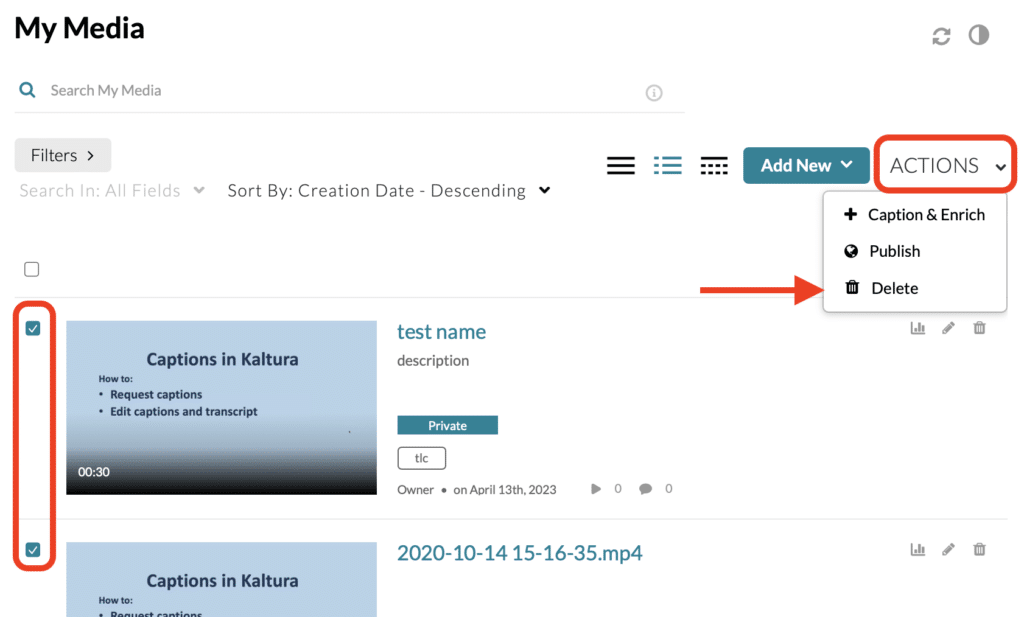
You can delete media in bulk from My Media by checking the box to the left of the media you want to remove, then click Actions and select Delete.
Where can I archive media for future use?
You can always re-upload media to Kaltura or a Moodle course from a backup. If you want to preserve media for future use, we advise you to store it on a personal drive or to use your ECU OneDrive account.
To upload media to OneDrive, login to your ECU OneDrive account here.
WordPress
Instructors and staff can request a WordPress site for their course, shop or research area. WordPress can be used for online or blended course delivery, to host blogs, e-portfolios, media galleries, information, artwork documentation etc. To request an ECU WordPress site contact the TLC.
WordPress Usages
You can use WordPress to create:
- Course sites
- e-Portfolios
- Departmental micro sites
- Galleries, discussion and critique
WordPressFIPPA Compliancy
ECU WordPress is FIPPA compliant because it is hosted on servers in Canada and is FIPPA compliant. Find out more about FIPPA here.
WordPress Support
For support or to request a WordPress site contact the TLC.